NSFW Game Guide - NSFW Academy
HUD Guide
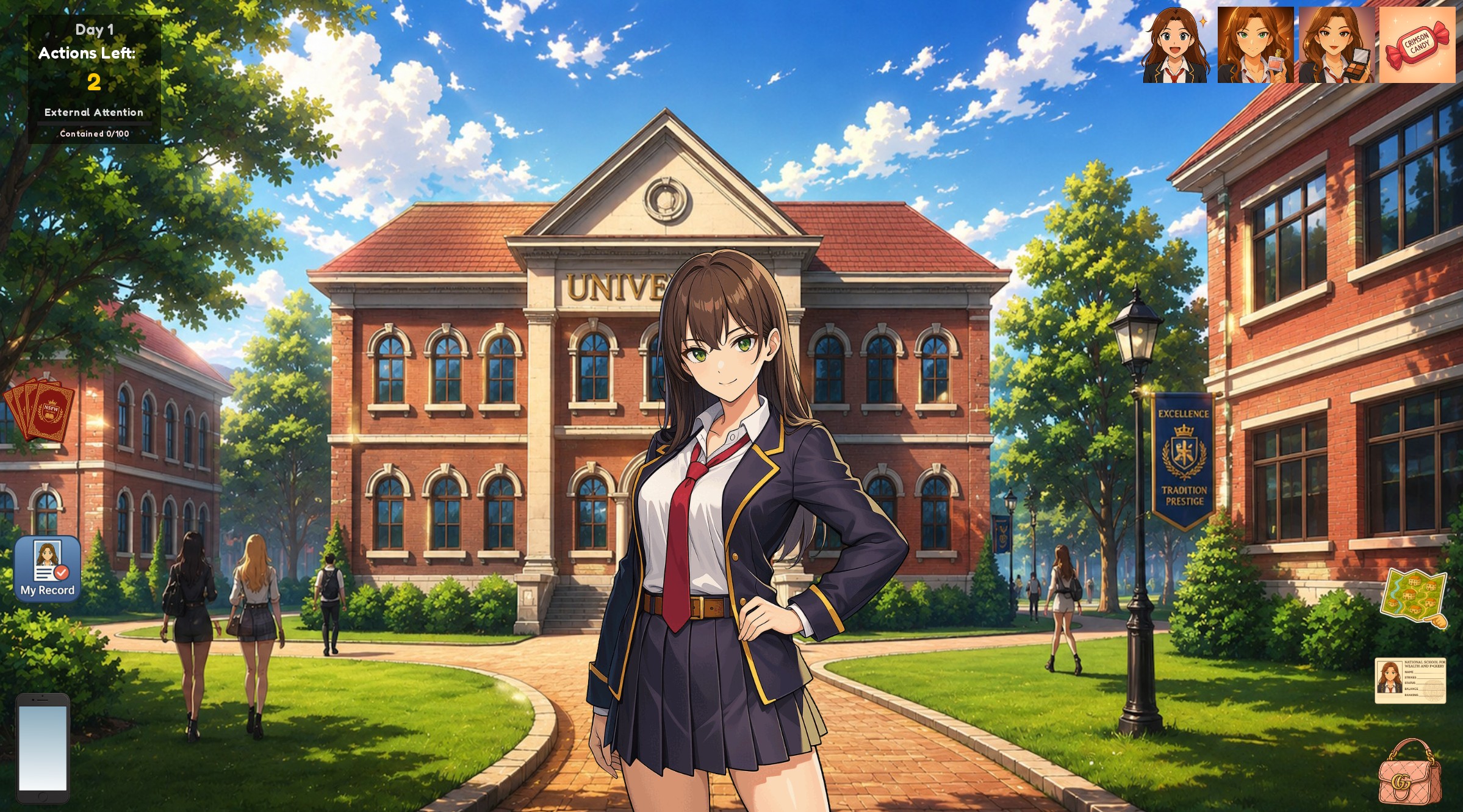
The Heads-Up Display (HUD) gives you quick access to everything you need while exploring NSFW Academy — monitor your progress, manage your character, travel between locations, and keep track of quests without interrupting gameplay. Most of the HUD is available whenever you’re freely exploring the campus, the city, or your dorm room.
On this page
Day & Actions
Located in the top-left corner, this panel shows the current day and how many actions remain before the day ends.
Day
Represents the passage of time throughout the semester. Some story events, quests, and character interactions only become available after a certain number of days have passed, so don’t worry if everything isn’t immediately accessible.
Actions Remaining
Most important activities consume one action, including attending classes, working jobs, exploring major story events, competitions, visiting certain locations, and larger activities.
When you run out of actions, you can still perform some minor activities before ending the day, and important evening events may still occur.
External Attention
The External Attention meter measures how much attention your activities are attracting outside the academy. Unlike your reputation, which only affects life inside NSFW Academy, External Attention reflects how much your private life is beginning to leak into the outside world — through family concerns, sponsor scrutiny, public exposure, social media leaks, or outside investigations.
| Level | Description |
|---|---|
| Low | Your activities remain mostly unnoticed. |
| Moderate | Rumors are beginning to spread. |
| High | People outside the academy may become suspicious. |
| Critical | Your actions may begin to affect your life beyond the academy. |
Making careful choices and avoiding unnecessary scandals can help keep this value under control.
Active Effects
The icons in the top-right corner show temporary effects currently affecting your character. These may represent:
Effects disappear automatically when they expire.
Perks
The Perks button opens your current loadout. Here you can view unlocked perks, equip different perk cards, customize your playstyle, and review perk bonuses.
Perks can improve many aspects of gameplay, including:
Experiment with different combinations to create a character that matches your preferred approach. See the full Perk Cards guide for details.
My Record
My Record is your character sheet. This screen contains nearly everything you need to know about your protagonist, including:
Whenever you’re unsure how your character is performing, this is the best place to look.
Smartphone
The smartphone is one of the most important tools in the game. It provides access to several apps that unlock as you progress through the story, including Chat, Log Book, Social Links, Instapic, RateMe, Confession Board, FanSync, WishPlug, Arrangements, and additional apps unlocked later.
Notifications
If a red notification dot appears on the phone, something new requires your attention — a new message, a quest update, a new social notification, or an unlocked feature.
Opening the relevant app will usually clear the notification.
Log Book
The Log Book is your quest journal. Use it to review active quests, completed quests, failed quests, story objectives, investigation notes, and helpful hints.
Whenever you’re unsure what to do next, the Log Book should be your first stop. Some investigations progress over several days — if a lead isn’t currently available, the journal will tell you when you can continue.
Map
The Map allows you to quickly travel between unlocked locations. Depending on where you are, you’ll see either the campus map or the city map. Common destinations include classrooms, courtyard, library, dormitories, gym, pharmacy, shops, clubs, and other unlocked areas.
Certain locations may become temporarily unavailable due to story progression, time of day, your outfit, reputation, or other gameplay conditions.
Student ID
The Student ID provides a compact overview of your character — think of it as a quick reference version of the full My Record screen. If you only want to check your current status at a glance, this is the fastest option.
Inventory
The Inventory stores all of the items you’re carrying. Here you can view collected items, use consumables, check quest items, review purchased equipment, and prepare for upcoming activities.
Some larger purchases or special objects may be stored elsewhere depending on the item.
Dorm Room Interface
Your dorm room has its own unique interface designed around preparation and character management. Depending on your progress, you may have access to features such as:
Your dorm is the perfect place to organize your inventory, prepare for future events, and manage long-term progression.
Why Does the HUD Disappear?
During certain moments, the HUD temporarily hides itself so the scene can take center stage. This commonly happens during:
- Story cinematics
- Dialogue sequences
- Minigames
- Investigations
- Full-screen menus
- Maps
- Special scripted events
Once the scene ends, the HUD will automatically return.
Frequently Asked Questions
Does opening menus spend an action?
No. Opening your phone, inventory, map, character sheet, or Log Book does not consume an action. Only gameplay activities performed from those menus may advance time.
Why does the dorm have a different interface?
The dorm focuses on preparation and character management instead of exploration, so it uses a dedicated layout designed for those systems.
Where can I see my reputation?
Open My Record to view your current reputation and how other students perceive you. See the full Reputation guide for details.
Where do I check my quests?
Open your Smartphone, then launch the Log Book app.
Where do I see my money?
Your current balance is displayed throughout several menus, including My Record. Items can be viewed in your Inventory.
What is External Attention?
External Attention represents the risk of your actions becoming known outside the academy. High values can lead to new story consequences involving your family, sponsors, or other people beyond campus.
What does the red dot on my phone mean?
It indicates that something new is waiting for you, such as a message, quest update, or newly unlocked feature. Checking the appropriate app will usually clear the notification.